|
This chapter only applies to monitoring delimited log files. |

Since delimited log files follow a predefined pattern, you will have to mirror the layout of the delimited log file inside EventSentry, so that EventSentry knows how to parse and split up the log file when it consolidates information to the database. Once a log file definition has been created it can be applied to one or more log files (see next section).
Monitoring delimited log files has the advantage of being able to perform searches and create reports based on the available fields in the log file. For example, if you are monitoring an IIS log file, then you will be able to view most frequently logged remote IP address in a report.
To create a new or edit an existing file definition, right-click the Log File Packages container and select Files and Files Types. The Log File Definitions area will show you all currently configured file definitions and allow you to add new definitions.
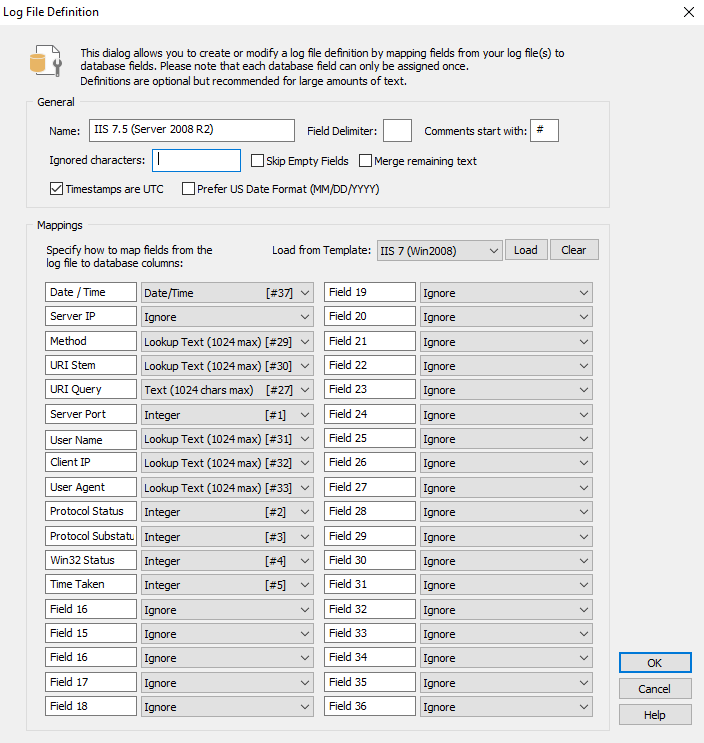
To add a new definition, click the Add button which will show the Log File Definition dialog. You can also edit an existing definition by double-clicking a definition from the list. The dialog is divided into two main sections - "General" and "Mappings" - both of which are required.
General
Option |
Description / Explanation |
Example |
Name |
The name for this definition |
Firewall Log |
Line Separator |
You will almost always want this set to Windows unless you are directly monitoring files on a Unix/Linux machine. |
Windows |
Field Delimiter |
The character by which fields in the log file are separated |
; |
Comments start with |
Lines starting with the specified character will be ignored |
# |
Ignore following characters |
All the characters specified here will be removed from the current line before it is analzyed |
()[] |
Skip empty fields |
Ignore empty fields, has the same effect as setting individual fields to "Ignore". Using this option may be easier to configure for log files which contain many empty fields |
|
Merge remaining text |
By default, EventSentry will only map fields which are mapped. If the log file contains more fields, they will be ignored. Checking this option will merge any remaining fields and append them to the last mapped field. This is usually only useful for log files which contain a variable number of fields which are rarely used but should still be consolidated. |
|
Timestamps are UTC |
Indicates that the time stamp is logged in UTC (opposed to local time) |
2019-02-25 18:00:01 |
Prefer US date format |
Due to the different date formats in use globally (MM/DD vs DD/MM) it may not always be possible for the agent to detect the date format automatically. If the date format in a log file is in US date format (month before day) it's recommended to check this box |
|
Mappings
The Mappings section allows you to tell EventSentry what the structure of the log file looks like so that EventSentry can parse the file correctly and map individual fields to their respective data types. Don't be intimated by the number of fields in the dialog, this chapter will explain how to create a new mapping from scratch. Creating a new file definition from scratch can take some time, but keep in mind that it is a one-time process that you will not have to repeat unless you change the layout of the log file.
Using Templates
If a file definition is already listed in the "Load from template" section then you are highly encouraged to select the definition from the pull-down list and click Load to pre-fill the mappings. Once the mappings are displayed, compare them with the log file you are intending to monitor and make sure that the mappings from the temp file match the content of the file. Some applications include a default log format which can be customized, so it is important that you adapt the mappings if the default format has been modified.
The best way to go about mapping a log file is to open the log file up in a spreadsheet application such as Microsoft Excel or OpenOffice Calc. This will allow you to convert the file to fields and easily see each line split into the individual fields. If you do not have a spreadsheet application available, then you can simply open the log file in a text editor such as Notepad.
When you have a clear picture of the available fields in the log file, you can start deciding how to map the individual fields starting from the left. For each of the fields available in the log file, you will perform the following steps:
1.Specify a description of the field
2.Map the field type to one of the available database data types
1. Field Description
Specifying a field description will help you analyze the log file through the EventSentry web reports. Rather than leaving the default "Field XX" description in place, enter a descriptive name of field, for example "Source IP" or "Bytes Transferred". This information will then be shown in the search output and reports. You can find this information either in the header of the log file or the application that is generating the log file.
2. Mapping to a Database Data Type
After you have entered the field description, you can map the field content to a data type. Please see the table below to see which database types are available to be used. Note that only a limited number of fields are available for each type. For example, once you have used the data type "Integer [#1]" for a field, you cannot use it again will need to use "Integer [#2]" the next time you want to map a field to the Integer type.
Please see the table below to see which types are available for use:
|
Maximum Length |
Maximum Usage Count |
Best Use |
Ignore |
n/a |
unlimited |
Use to ignore fields you are not interested in |
Integer |
0 - 2147483647 |
18 |
Use for number fields |
Text (32 chars max) |
32 characters |
4 |
Use for short strings that are unique in most lines of the log file |
Text (512 chars max) |
512 characters |
4 |
Use for medium-sized strings that are unique in most lines of the log file |
Text (1024 chars max) |
1024 characters |
2 |
Use for long strings that are unique in most lines of the log file |
Lookup Text |
1024 characters |
8 |
Use for any string that keeps re-appearing throughout the log file |
Date / Time |
n/a |
2 |
Use for any string that represents a date / time (see below for more info) |
Text or Lookup Text?
While it is probably obvious when to use the "Ignore" and "Integer" field type, it is less obvious as to whether you should use the "Text ..." or "Lookup Text" data type for a text field.
Use this rule: If the text of the field keeps appearing through the log file(s), for example an IP address in a firewall log file, then you should use the "Lookup Text" data type. Text of this type is stored only once in a central lookup table, saving database space and allowing you to group output in the reports by the field. For example, if the field is the IP address of internal hosts from a firewall log file, then you can view a report that shows how many lines from computer have been logged by the firewall!
If, on the other hand, the text of the field is unique for almost every row (e.g. a date or time stamp), then it is best if you assign the text to a regular text type. It wouldn't make sense to fill a lookup table up with values that change millions of times.
Date / Time
Instead of storing timestamps as string values, common date/time formats can be parsed and converted to a timestamp value if either of the following is true for the selected field (column) in the log file:
•The timestamp contains the date and time
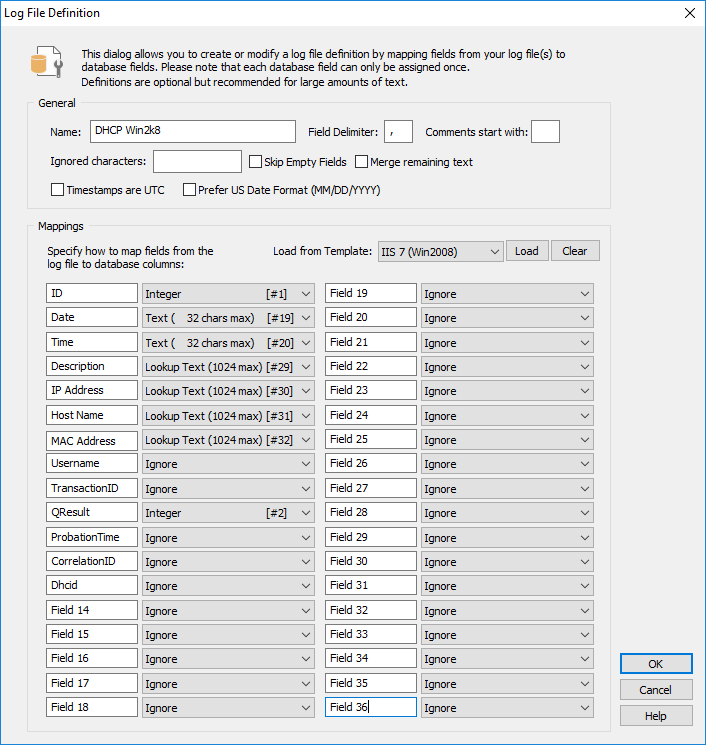
•The timestamp contains only the date but the field immediately following the date contains the time (see screen shot below)
If the column of a log file that is marked as Date / Time only contains a date (without the time), then EventSentry will fetch the time from the next column by merging the two columns. As such, if a log file logs the date & time in separate columns, only a single Date / Time definition is needed.
|
Parsing only a date (e.g. 12/1/2019) or only a time (e.g. 15:03:44) is not supported; incomplete date strings require a text-style field type (text or lookup text). |

The screen shot below shows a log file where date and time are split into two columns, the matching log file definition is shown below: