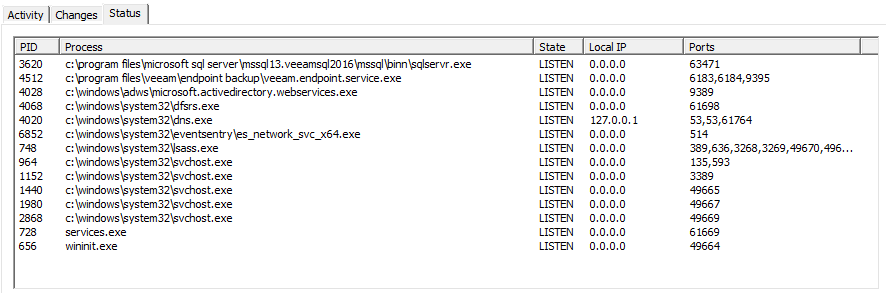
The system activity dialog (re-sizable) provides insight into various system activities that can help with:
•Observing application activity
•Troubleshooting
•Reveal suspicious behavior
|
The System Activity dialog requires administrative privileges in order to show some activity, whereas the EventSentray utility only runs with user-level privileges. As such, when viewing the System Activity dialog, EventSentray will prompt the user to restart the EventSentray utility with administrative permissions. |

Activity
Shows process and service activity, including:
•Process Start (including command line)
•Process End
•Service/Driver Start
•Service/Driver End
Start activity is indicated with a green arrow pointing upwards, stop activity is indicated with a red square. Unsigned executables are displayed in red color whereas signed executables are displayed in black. Double-clicking a line in the activity tab will open the default browser and navigate to the virustotal.com web site (the SHA 256 checksum is transmitted to VirusTotal).
|
Detailed Tracking for event ids 4688 and 4689 needs to be enabled to show process activity. No other functionality of the system activity dialog requires auditing to be enabled. |
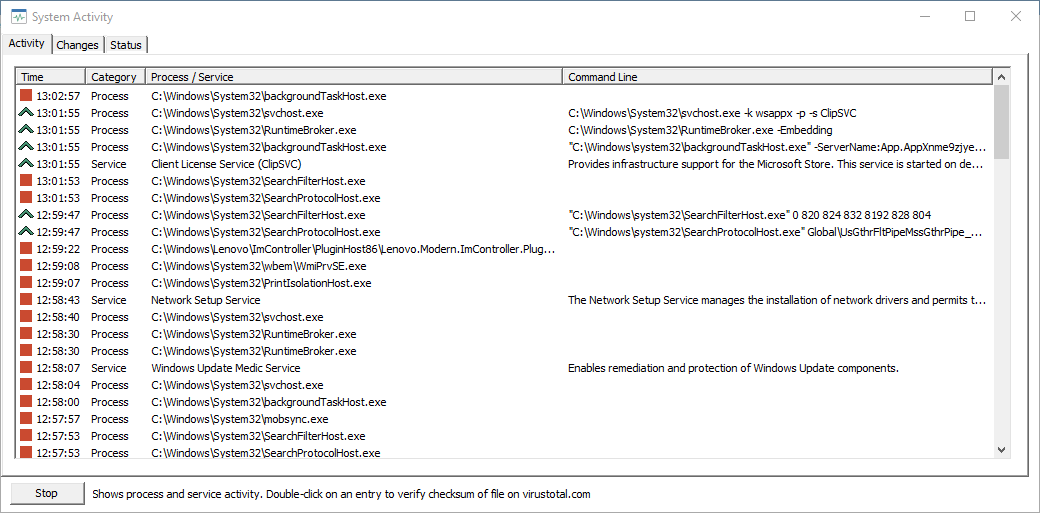
Changes
Shows when changes are made to services, scheduled tasks and system files in the %SYSTEMROOT%\system32 directory and sub directories.
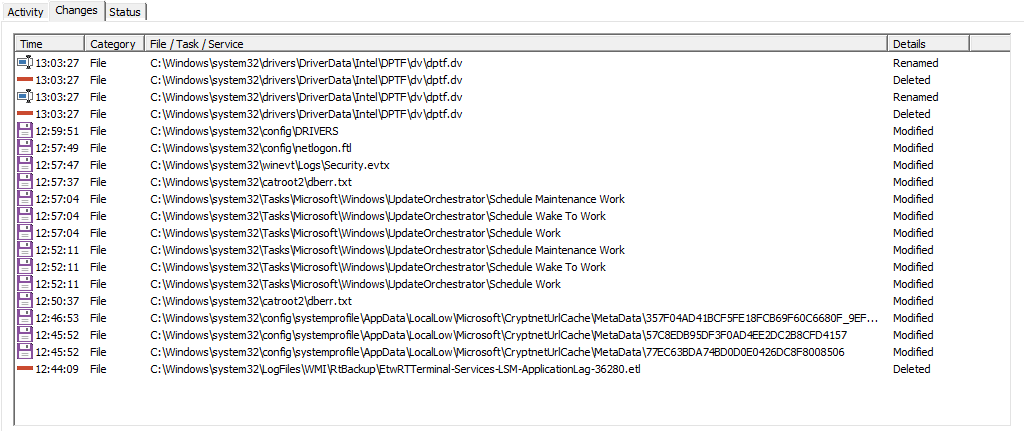
Status
Shows all processes which are currently listening for incoming TCP connections. Output can be sorted by clicking on columns.