Since Ransomware is still all the rage – literally – I decided to write a 4th article with a potentially better method to stop an ongoing infection. In part 1, part 2 and part 3 we focused mostly on detecting an ongoing Ransomware infection and utilized the “nuclear” option to prevent it from spreading: stopping the “server” service which would prevent any client from accessing files on the affected server.
While these methods are certainly effective, there are other more targeted steps you can take instead of or in addition to shutting down the server service, provided that all hosts susceptible to a Ransomware infection are monitored by EventSentry.
When EventSentry detects an ongoing Ransomware infection, it can usually determine the infected user by extracting the domain user name from the 4663 event. Simply disabling the user is insufficient however, since a disabled user can continue to access the network (and wreak havoc) as long as he or she doesn’t log off. Any subsequent log on attempt would of course fail, but that provides little comfort when the user’s computer continues to plow through hundreds or thousands of documents, relentlessly encrypting everything in its path.
As such, the only reliable way to stop the ongoing infection, given only the user name, is to log off the user. While logging a user off remotely is possible using the query session and logoff.exe commands, I prefer to completely shut down the offending computer in order to reduce the risk of any future malicious activity. Logging the user off remotely may still be preferable in a terminal server environment (let me know if you want me to cover this in a future article).
Knowing the user name is of course great, but how do we find out which computer he or she is logged on to? If you have EventSentry deployed across your entire network – including workstations – then you can get this info by querying the console logon reports in the EventSentry web reports. If you are not so lucky to have EventSentry deployed in your entire environment (we offer significant discounts for large quantities of workstation licenses – you can request a quote here) then we can still obtain this information from the “net session” command in Windows.
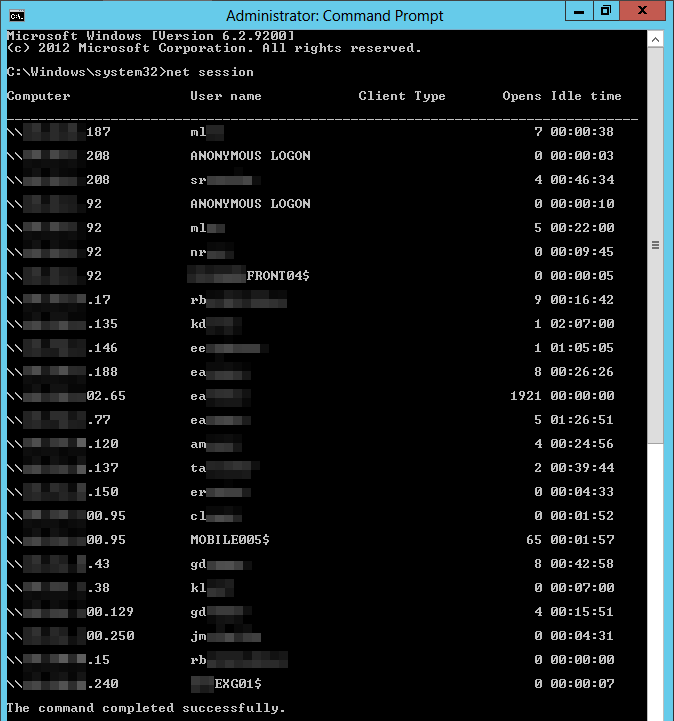
We’ve created a little script named antiransom_shutdown.vbs which, given a user name, will report back from which remote IP this user most recently accessed the local server and optionally shut it down. Here are some usage examples:
Find out from which computer boris.johnson most recently accessed this server:
cscript.exe C:\Scripts\antiransom_shutdown.vbs boris.johnson
Find out from which computer boris.johnson most recently accessed this server AND shut the remote host down (if found):
cscript.exe C:\Scripts\antiransom_shutdown.vbs boris.johnson shutdown
The script uses only built-in Windows commands, as such there is no need to install anything else on the server where it’s run.
When executed with the “shutdown” parameter, the script will issue a shutdown command to the remote host, which will display a (customizable) warning message to the user indicating that the computer is being shutdown because of a potential infection. The timeout is 5 seconds by default but can be customized in the script. It’s recommended to keep the timeout short (5-10 seconds) in order to neutralize the threat as quickly as possible while still giving the user a few moments to know what is happening.
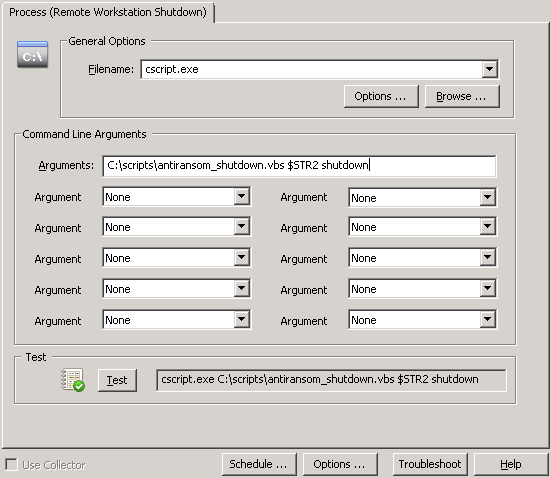
The overall setup of the Ransomware detection is still the same, we’re setting up a threshold filter to detect a higher than usual frequency of certain 4663 events and trigger an action in response. Only this time we don’t shut down the server service, but instead trigger this script. To properly execute the action, configure it as shown in the screenshot below. The executable is cscript.exe (the interpreter for .vbs files) and the command line parameters are the name of the script, $STR2 and “shutdown”.
So what’s the better and safer approach to freeze an ongoing Ransomware infection? Shutting down the server service is the most reliable approach – since it doesn’t require the workstation to be reachable and will almost certainly succeed. Remotely shutting down a workstation has minimal impact on operations but may not always succeed. See below for the pros and cons of each approach:
File Sharing Shutdown
Pros: 100% effective
Cons: Potentially larger disruption than necessary, false positive unnecessarily disrupts business
Remote Workstation Shutdown
Pros: Only disables infected user/workstation, even if false positive
Cons: Requires workstation to be reachable
This ends up being one of those “it depends” situations where you will have to decide what’s the best approach based on your environment. I would personally go with the remote workstation shutdown option in large networks where the vast majority of workstations are desktops reachable (and not firewalled) from the file server. In smaller, more distributed networks with a lot of laptops, I would go with the file service shutdown “nuclear” option.
A hybrid approach may also be an option for those opting for the remote workstation shutdown method: trigger a remote workstation shutdown during business hours when IT staff is available on short notice, but configure the file service shutdown after business hours when it’s safer and affects fewer people. All this can be configured in EventSentry by creating two filters which are identical except for the action and the day/time settings.
Prerequisites
It’s important to point out that the EventSentry agent by default runs under the LocalSystem account, a built-in user account which does not have sufficient privileges on a remote host to issue the shutdown command. You can elevate the permissions of the EventSentry agent and work-around this limitation in 2 ways:
- Change the service account (fast): Changing the service account the EventSentry service uses to a domain account with administrative permissions will allow the agent to remotely shut down a remote host. This will have to be done on every file server which may issue shut down commands (you can use AutoAdministrator to update multiple file servers if necessary).
- Give the “Force shutdown from a remote system” user right: It’s not necessary to issue domain-wide admin rights to the EventSentry agent, the key right the agent needs is just the “Force shutdown from a remote system” user right. The quickest way to deploy this setting is of course through group policy:a) Open the “Group Policy Management Editor”
b) Edit an existing policy (e.g. “Default Domain Policy”) or create a new group policy
c) Navigate to “Computer Configuration\Policies\Windows Settings\Security Settings\Local Policies\User Rights Assignment”
d) Double-click the “Force shutdown from a remote system” user right and add both “Administrators” and the computer accounts of the file servers to the list. Alternatively you can also create a group, add the file servers to the group, and add that group to the policy (keep in mind that you will need to restart the file servers if you go with the group method).Once the group policy setting has propagated to the workstations, the remote shut down initiated from the file server(s) should succeed.
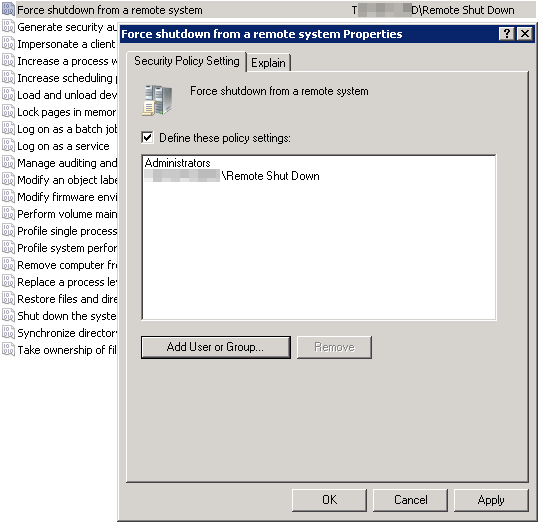
Change the “Force shutdown from a remote system” user right
Good luck protecting your network against Ransomware infections, also remember to verify your backups – no protection is 100% effective.