EventSentry v2.90: Event Log Monitoring Changes

Since we have just released EventSentry v2.90, we’ll be blogging about the improvements and new features in the coming weeks. Since event log monitoring is how it all started, my first post in this series will be about the improvements and new features in our event log monitoring engine.

Vista/Windows 2008
The biggest change in v2.90, in regards to event log monitoring, is of course the native support of the Windows Vista and Server 2008 event log API. As many of you know, Microsoft introduced a new API for event log monitoring while still keeping the legacy API in place for applications that don’t support the new API yet.

EventSentry v2.81 uses this legacy API with some work-arounds to monitor the new event logs, but I highly recommend upgrading to v2.90 if you’re monitoring Server 2008 and/or Vista event logs. Upgrading will result in less overhead and better formatting and presentation of events since the agents now access the event log with the native API. Naturally, the event log backup feature will backup event logs in the new evtx format on Vista/Server 2008 computers.

The new version also supports the new Operational event logs which are displayed under Application and Services Logs/Microsoft, for example the Microsoft-Windows-Backup/Operational log.

eventlogblog_290_eventviewer_1.pngThese operational logs need to be configured as custom event logs in EventSentry, by specifying the full path (e.g. Microsoft-Windows-Backup/Operational) as the name of the custom event log.

Please see one of my previous posts about the event log changes in Vista (which also applies to Server 2008) for more information.

Note that support for the new event log API is transparent, and there is still only one executable of the EventSentry agent for all versions of Windows.

64-Bit
EventSentry v2.81 did not format some events on 64-bit editions of Windows correctly, and we have resolved this problem in 2.90 which renders all events on 64-bit machines correctly. The EventSentry agent still runs as a 32-bit application in 2.90, but we have long-term plans to supply a 64-bit agent for x64 operating systems.

Filter Timers
Filter Timer filters allow you to ignore events that would otherwise trigger an alert, if they are followed by another event within a preset time period. For example, if an event indicating that a critical service is stopped is being immediately followed by another event indicating that the service is running again, then a filter would allow you to suppress both events.

Previously however, filter timers had to be setup exactly for each event pair. This meant that if you wanted to use a filter timer for 5 services, then you would have to create 10 events. Starting with 2.90 you only have to create 2 events now, as long as the first event and the clearing event share the same order of insertion strings – which is usually the case.

Please see the documentation for more information.

Action Trigger History
Selected actions (e.g. email, pager) now include the ability to log their trigger history – that is every time they are triggered by an event – to the database. This helps you confirm that a notification was in fact performed, and also gives you the ability to gather statistics about which actions are being triggered and how often.

eventlogblog_290_actiontrigger_1.pngThe action trigger history includes the following information:

•    Date/Time
•    Computer
•    Action Name, Action Recipients
•    Event Log Package, Filter Name
•    Event Log, Event Source, Event ID, Event Number

Please see the documentation for more information.

Web Reports: Error Explanation

Many events from the security event log, for example audit failure event 675, contain error numbers and failure codes inside the event that require you to research them in order to find out what they mean. Here is an example:

eventlogblog_290_event_1.pngYou can see that the failure code of 0x25 in itself doesn’t reveal too much, but if you view the same exact event through our web reporting, then the failure code is automatically explained for you:

eventlogblog_290_event_2.pngAs you can see in the screenshot above, the Kerberos failure code of 0x25 is automatically explained as “Clock skew too great”.

Copying / Pasting event details from Emails
If you have been using EventSentry for a while, then you’ve probably setup event exclusions more than once, most likely after receiving an email from one of the agents. Starting with 2.90, you can now copy the event in your email client and paste it into a new filter. The management console will parse the event properties and automatically fill in the following fields for you:

•    Event Log
•    Event Severity
•    Event Source
•    Event Category
•    Event ID

Please see the documentation for more information.

You can take a look at version history as well for a complete list of changes and new features in the 2.90 release of EventSentry.

Enjoy,
Ingmar.

NTFS Alternate Data Streams: Hiding data in plain sight since 1993

I recently read an article in the Hackin9 magazine (worth taking a look if you haven’t heard about it) about alternate data streams (ADS) in NTFS. I had heard about this hidden feature in NTFS a long time ago actually, but over the years forgot about its existence again.

Background
In a nutshell, the NTFS file system, which was introduced with Windows NT 3.1, supports ADS – sometimes also referred to as “hidden streams”. This means that you can attach or associate any number of files to an existing file, yet those files will not be visible to the vast majority of file management applications – including explorer and the “dir” command (Vista can show ADS with a parameter). One thing I find interesting about streams is that a lot of people in IT do not seem to
know about them, even people otherwise very familiar with the Windows
Operating System.

Now, streams are created and accessed by appending the “host” file name with a colon, followed by the name of the stream. Let’s say you want to create a text file called financials.txt and hide it with winhelp.exe, you would run notepad C:\Windows\winhelp.exe:financials.txt. This will bring up notepad which will prompt you to create the file since it doesn’t exist (since the alternate stream is basically a file). You can then save any text in the hidden file and save it. You will notice that the file you just created will not show up when you do a directory list (dir C:\Windows) and will also not show up in the Windows Explorer. Note that the timestamp of the host file will change however.

Now there are of course a variety of utilities that have been developed in the last 15 (!) years that will allow you to find hidden streams, but more on that later. Hidden streams still exist on Vista and later, though the feature seems to have become more restrictive.

There are apparently no limits as to how many streams one can associate with a file, or the type of file that can be associated. This means that you can associate an executable as much as you can an ASCII file. There are however some limitations as to how user mode applications (e.g. notepad) can access hidden streams. Let’s go back to the previous example where we created the file financials.txt in winhelp.exe. If you open a command prompt and execute type C:\Windows\winhelp.exe:financials.txt, then you will not be able to see the contents of the hidden file. If you use notepad instead however, you will be able to see the file (notepad C:\Windows\winhelp.exe:financials.txt). This is probably because cmd.exe and its built-in commands up until Windows XP are not aware of alternate streams. ON a Windows XP machine I also could not open that same file if I tried to open it from inside notepad with the File -> Open command.

Creating Streams
Things get more interesting when you attach executables to files – and execute them! Let’s say I wanted to hide popular windows game solitaire inside the file C:\Windows\wganotify.log and call the stream “calc.exe”. Here is what you do:

type system32\sol.exe > C:\Windows\WgaNotify.log:calc.exe
start C:\windows\WgaNotify.log:calc.exe

Auditing Alternate Data Streams
Those of you interested in auditing will probably wonder how Windows tracks access to hidden streams in the event log. Well, there is good and bad news. The bad news is that object tracking (the famous event 560) does not show hidden streams, and instead only shows the “host” file name being accessed. Process Tracking on the other hand shows hidden streams in the expected manner. For the above example, a 592 event will show that file C:\windows\WgaNotify.log:calc.exe was executed.

Exploiting Streams
Scary, huh? This opens up a can of worms when you think about malware hiding inside otherwise innocent files – such as a log file. At appears as if most AntiVirus products do not detect hidden streams, at the same time there doesn’t seems to be a significant number of mainstream malware applications out there are that rely on hidden streams. I’m not sure why that is, since this feature seems almost too good to be true for the writer of any malicious applications. One reason might be that malware writers mostly target home machines, and many of those computers are still formatted with the FAT(32) file system, which of course doesn’t support ADS. This might change over time though, as more (home) computers use NTFS as their file system.

So after reading up on ADS, playing around with it last week, scanning my computer for hidden streams, I arrived at the inevitable question: What is the higher purpose of Alternate Data Streams? I mean, many applications don’t support it, most people don’t know about it, and a scan didn’t reveal any hidden streams besides a couple inside some Microsoft installers that apparently use them as some sort of meta data.

As it turns out, ADS was created for compatibility with the Macintosh HFS file system, which uses a data fork and resource fork to store data in a file (OS X now uses the HFS+ file system). But over the years (it’s been 15 after all) some developers at Microsoft decided to utilize this feature. For example, when you specify summary information about a file (right-click -> properties -> summary), then this information will be stored in ADS.

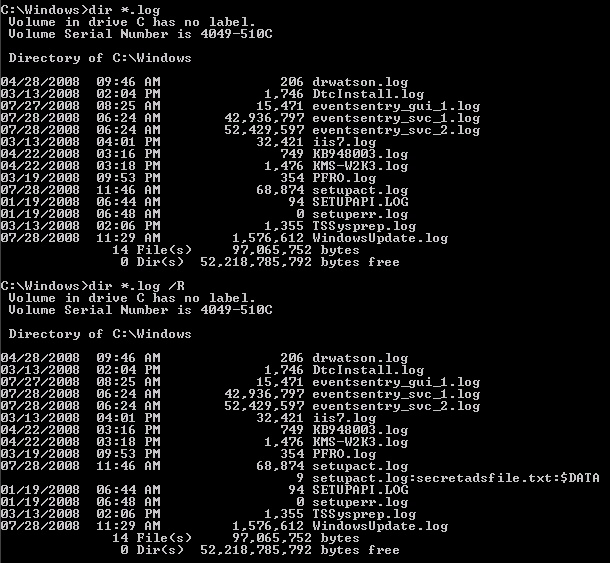
As mentioned earlier, there have been some improvements in regards to ADS with Vista and later. Vista can now show alternate streams with the /R switch of the “dir” command. My preliminary research also shows that hidden streams can no longer be executed in Vista or later – so what we did in the above example will not work. I think that’s a good thing, since there really is no practical reason (unless you develop malware) to do this. The screen shot below shows the output of a regular dir command and the dir /R command on a Windows 2008 server (note the file setupact.log).
ADS_Win2k8.jpgIn my humble opinion, Microsoft should get rid of alternate streams in future versions of Windows, and instead come up with some sort of structured way of embedding meta data in files. Anything contained in meta data should be non-executable and limited in size, e.g. 256kb.

Discovering Streams
So what does all this mean for you, the person responsible for security in your network? How can you find hidden streams and detect if streams are being added to files?

There are many free third-party utilities out there that show and manipulate hidden streams, but the discovery of this feature led us to extend the functionality of the File Monitoring feature of EventSentry to include the automatic detection of hidden streams in real-time. This means that any stream added, modified or removed from a file in a monitored location will be detected by EventSentry.

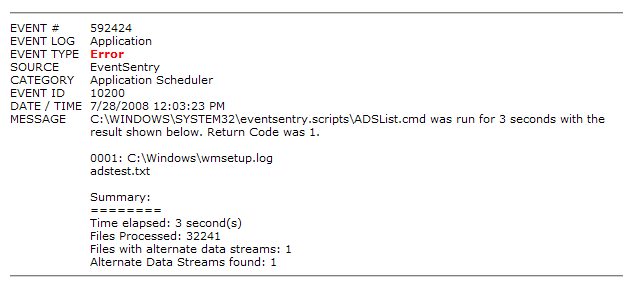
We have also developed a new command-line tool, adslist.exe, that will list all alternate data streams on a directory and optionally its sub directories. The tool is part of the NTToolkit v1.96 and I recommend that you schedule to run this tool with the Application Scheduler feature of EventSentry on a regular basis, or schedule it with the Windows Task Scheduler and email the results (adslist.exe C:\ /s). The advantage of using EventSentry is that the results of adslist.exe can automatically be emailed to you only if alternate streams were found. You can do this because the %ERRORLEVEL% is set to 1 by adslist.exe when one or more streams are found. The screenshot below shows what this would look like in the email sent by EventSentry:
EventSentry_ApplicationScheduler_ADSList.pngManipulating Streams
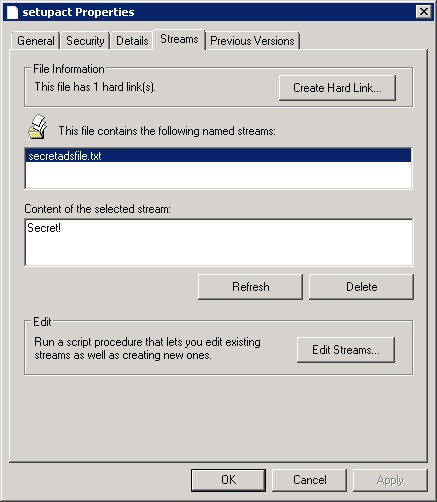
While Microsoft doesn’t offer a tool to search for and discover alternate data streams, they do offer a good explorer-extension that allows you to view and delete alternate data streams. You can download it from https://docs.microsoft.com/en-us/sysinternals/downloads/streams, the zip file contains the source code as well as another utility to create hard links on NTFS volumes. After extracting the archive, navigate to the \StrmExt\ReleaseMinDependency folder and run regsvr32 StrmExt.dll. You will then have an additional tab when viewing file properties in explorer called “Streams”:
StrmExt.jpgAnother way to get rid of hidden streams is to copy a file to a FAT[32] volume and then back to the NTFS volume, or – if you don’t have a FAT[32] volume available – simply compress and uncompress the file again.

Well, I hope this gives you a better understanding of alternate data streams, even if you were already familiar with them. Like I mentioned earlier, it doesn’t appear as if ADS is used for evil in a large scale quite yet (so no reason to panic!), but I believe it is better to be safe than sorry.
Event 4964: Special Groups Feature for Vista + Windows 2008 Entrepreneurs

There is certainly a lot of talk about the benefits of using Vista, but a lot of administrators and users seem to be avoiding it and instead hold on to Windows XP – which now appears to have a better reputation than ever! Well, here is a small reason to upgrade to Vista or Windows Server 2008.

Microsoft introduced a new event, 4964, called the Special Groups Feature. The purpose of this feature is to log event 4964 to the security event log when a member of a group you specify logs on to a computer.

So let’s say you want to know when a member of a local Administrator group logs on to a computer (and with EventSentry you could get an email when that happens for example), then you can accomplish that with the special groups feature.

In order to use this feature you need to do three things:

  • Determine the SID of the group(s) you want to monitor
  • Specify the SID(s) of the groups you want to monitor in a registry key
  • Ensure that you are auditing the Special Logon Feature (enabled by default)

One way to obtain the SID of a group is to use the getsid.exe tool which is part of the Windows XP SP2 Support Tools and other Microsoft Resource Kits. Note that the primary purpose of this tool is to compare the SID of two user accounts (so it requires you to specify two user/group accounts), but you can just enter the same group name twice to get around this. Here is an example output of the tool:

getsid \\mydc “Domain Admins” \\mydc “Domain Admins”

The SID for account BUILTIN\
Domain Admins matches account BUILTIN\Domain Admins
The SID for account BUILTIN\Domain Admins is S-1-5-21-9817441204-4587651373-9817264971-512

As you can see you need to point to tool to computer where the group exists, in our case I used a domain controller since I want to monitor if somebody from the Domain Admins group logs on to the computer. If you monitor a built-in group (e.g. Administrators) then you will see that the SID is much shorter and the same across all your computers.

Now that we know the SID, we can specify it in the registry. Navigate to key HKEY_LOCAL_MACHINE\System\CurrentControlSet\Control\Lsa\Audit and create a new String with the name SpecialGroups.

The value for this new string will be the SID of the group you want to monitor, and you can separate multiple SIDs with a semicolon. For example:

S-1-5-32-544;S-1-5-32-123-54-65

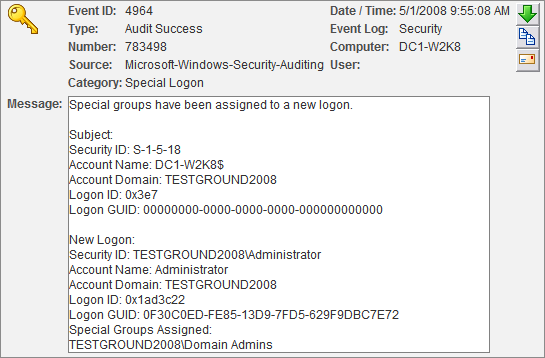
You do not have to reboot after making this change, it is effective immediately with the first subsequent login. The event that is being logged will look similar to this (screen shot from the EventSentry Web Reports):

Special Groups Logon 4964 ScreenshotThe relevant information is shown in the lower part of the event in the New Logon section. Security ID shows the user that logged on, and Special Groups Assigned shows the group the account is a member of (of course this group has to be specified in the registry).

Voila. This feature probably makes most sense on critical servers, though I would recommend enabling it on all workstations as well since you probably want to know if a member of the local Administrators group logs on. But of course this also means that you need to be running Vista on your network :-).

Since this feature needs to be activated using the registry, you can use AutoAdministrator to push this registry change to multiple computers. AutoAdministrator has actually been rewritten from scratch and we will be releasing a new version 2.0 very soon.

Operational Event 567? Maybe sometimes.

In my previous post I explained when and why 560 events are logged, and roughly explained why they are only of limited usefulness since they only log what a user could have done, not what they actually did.

Starting with Windows XP and Windows Server 2003, Microsoft introduced the so-called operational event 567. This event is supposed to enhance the auditing experience by not only logging what a user could do, but instead what he actually did! Does this sound too good to be true? Well, I guess that’s because it almost is.

According to Eric Fitzgerald’s Object Access Auditing Overview (Eric is the former head of the Windows Auditing Team), the 567 event should be logged in between the 560 (open handle) and 562 (close handle) events.

As such, the idea behind the 567 is simple:

1. User opens text file backup.cmd with a text editor. Event 560 is logged which includes all the rights the user will have to the document backup.cmd.

2. The user hits the save button, and Windows logs event 567, most likely including the WRITE_DATA access mask which indicates that data was written to the file. Note that the 567 event will not, unlike the 560 event, include the file name in the message text, but instead just the value of the handle that was included in the previously logged 560 event. As such, to make use of that event, you will have to go back to the 560 event to figure out which file was affected by the subsequently logged 567 event.

3. When the user closes the file, event 562 is logged. This event also only includes the value of the handle which was returned by the previously logged 560 event.

Well, you can imagine that I got pretty excited after doing all the research and was ready to see that 567 event in action on our production and test network. So I enabled auditing on a folder and started creating files, modifying files and so forth. Events 560 and 562 were logged just fine and as expected, but I had difficulties seeing a 567 event – it just wasn’t there. Since there is no option to turn event 567 on or off, I wasn’t exactly sure what I was doing wrong. I was ready to give up – after all I was quite tired that night, but after playing around more, trying different operating systems, different auditing options, logging on locally etc. I finally saw the 567 event. Hooray!

All seemed well until the next morning, when I tried to continue last night’s work and got stuck again. No 567 event. I then remember Eric’s blog entry, where he pointed out that event 567, due to a bug, wasn’t logged when files were accessed through a file share unless you had WinXP SP2 or Win2k3 SP1. Surely this couldn’t be a problem in my network, since I was running SP2 on XP and Windows Server 2003. Well, it was the best hint I had to work with, and so I compared local and remote file access auditing to see if it would make a difference.

Bingo!

As it turned out, event 567 was only logged when I accessed files locally, that is if the file that was audited resided on the same machine that I had logged on to. As soon as I accessed a file through a file share (as most people do), event 567 was not logged.

I was still confused though, after all I had read about the 567 event not only in Microsoft’s documentation and blog, but also at other trustworthy sources and still thought that maybe something was off in my environment. Maybe I was missing a hotfix or some other secret ingredient that would prevent my server from generating the highly desired 567 event.

So expanded my tests to another test network, another production network, a SBS 2003 network and so on and so on. The results were always the same, event 567 was not logged when I accessed the audited file through a file share.

Since I ran out of options and the existence vs. non-existence of the 567 affected development of a new EventSentry feature, I opened up a support call with Microsoft’s Enterprise Support. After an hour of mostly hold time and an actually helpful engineer, it turns out that event 567 is indeed only logged sometimes. The engineer didn’t want to be too specific, but the bottom line was that one should not except the 567 event to always be logged when a 560/562 event pair was logged. Asking why that was the case, I was told that implementing event 567 “correctly” would have required a kernel change which was not an option. So there you have it.

I stick to my “research” however – event 567 is indeed logged as long as you are accessing the audited files locally, and not through a network share. Otherwise you will have make do with the 560/562 events.

Of course you can also upgrade to Vista or Windows Server 2008, which log event 4663 (= 567 + 4096) regardless of whether you access the file locally or remotely. This event also includes the full filename and path, so collecting the related 4656 and 4658 events is not necessary. I have verified it with both, and it works very well indeed.

Thankfully, EventSentry 2.90 (when released) will take most of that burden of you and perform some additional  work for you to give a crisp idea of who is modifying/creating/deleting which file at what time.

Enjoy!

Vista/Win2k8 Event Log Changes #2: .evtx Format

In my previous post I already mentioned that Vista and Windows Server 2008 introduced many changes to the Windows Event Log, and the event log backup files with the familiar .evt extension are no exception. If you backup event logs in the .evt format and plan on moving to Vista and/or Windows 2008 then you should make yourself familiar with the basic changes and the “new” EVTX format.

The new event viewer on Vista and Win2k8 supports exporting an event log in either the EVTX, XML, TXT or CSV format. If you select the EVTX format then you will not be able to import/load this file on a Pre-Vista/Win2k8 machine, the old event viewer does not understand the new EVTX format.

So far so good, this is to be expected. Like I mentioned in my previous post, Vista and later also still provide the legacy event log APIs so that applications that were developed for Windows 2003 and earlier are still able to access and backup the event log. The next paragraphs get a bit confusing, so only read on if you are interested in more details ;-).

Windows 2003 and earlier provide two API calls to backup and/or clear the event log: ClearEventLog() and BackupEventLog(). If you use any of these functions to backup an event log on Vista and later, then you are still able to create a .evt file. I would expect that this file could be opened on any computer that understands the EVT format, however this is not the case. Even when you export an event log using the aforementioned legacy API calls, the resulting file can still only be opened with the new event viewer on Vista or later. I will refer to event log backup files that were created on Vista and later with the legacy API calls as the new EVT format from now on.

This becomes more clear when you compare the contents of the new EVT format with the EVTX format. While the two files are different for the exact same event log backup – the overall structure are quite similar. You can also rename a file with the new EVT format to the EVTX extension and the new event viewer will open this file correctly. The format of an EVT file on the other hand is very different to that of an EVTX file.

So the bottom line is that you can, in theory, create three types of event log backup files:

1. EVT Format
These files are created on Windows Server 2003 and earlier. Vista and later refer to these files as “Classic Event Log Files”, and you can open and read EVT files on any NT-based OS including Vista and later.

2. EVT Format (when created on Vista and later)
These files can only be created on Vista and later by using the legacy API calls ClearEventLog() and BackupEventLog(). It is important to point out that even though these files have the .evt extension, they unfortunately cannot be read on Windows Server 2003 or earlier and the format of this file is similar to the new EVTX format.

3. EVTX Format
These files can only be created and viewed on Vista and later.

Note on EventSentry: If you are backing up event logs with EventSentry v2.72, v2.80 or v2.81 on Vista or Windows 2008, then EventSentry will create EVT files (#2) that can only be viewed on Vista or later. We are switching to the native EVTX format for event log backups with the upcoming v2.90 release of EventSentry.