Route 66 was a US highway that connected Chicago with Los Angeles (or vice versa), with a total length of almost 2500 miles (for the rest of world using the metric system: almost 4000 km). It was established in 1926 and Nat King Cole first recorded the song “(Get Your Kicks On) Route 66” in 1946.
 Completely unrelated to Route 66 of course is KiXtart, a free, free-format scripting language for Windows.
I first ran across KiXtart back in ’99, when I was looking for a scripting language that I could use to write login scripts in a NT4 network. My goals back then were simple, and included the ability to map printers and shares depending on the user and/or group membership.
I was already familiar with Perl back then, and would have preferred to use that, if it wouldn’t have been for the requirement to install Perl on every workstation. Things have changed since then of course, and installing Perl today on every workstation in your domain would be rather simple with GroupPolicy (ActivePerl provides a MSI).
Still, KiXtart is a surprisingly simple and flexible scripting language that will allow you to accomplish most anything (not only in regards to login scripts) with extremely little effort. KiXtart also supports Windows 9x clients, if you are in the unfortunate position to take advantage of that functionality.
So what can you do with KiXtart? Here is an overview:
- Read and/or write to the registry
- Manage the event log
- Add printer or network share connections
- Create shortcuts, program groups etc.
- Read and/or write from/to files
- Retrieve system information (memory, hostname, IP address, …)
- Get group information
- And much more …
There really is little you cannot do, and most tasks can be accomplished with as little as one or two lines of code. How about some practical examples of what you can do with KiXtart:
- Map the color laser printer to all members of the “Marketing” group at logon.
- Map a network share depending on the network location (e.g. IP address) of a user.
- Query registry values or log information to the event log.
- Add a shortcut or program group
- Change the wallpaper 🙂
The KiXtart web site has the complete documentation for all commands and functions that are at your disposal, and you can download them in a variety of formats (I recommend the CHM format) from http://www.kixtart.org/?p=manual.
But that’s all nothing but dry theory, so I will show you how to create a KiXtart script that accomplishes the following:
- Creates a printer connection depending on the group membership of the user
- Maps network shares depending on the group membership
- Displays a warning message if the latest service pack is not installed
- Maps another network share only if the user is in a certain IP network
- Display a warning if the password is older than 180 days
1. Creating a printer connection
IF INGROUP("MARKETING")
? "Connecting to color laser ..."
ADDPRINTERCONNECTION("\\PRINTSERVER\COLOR_LASER_1")
ENDIF
In this example we are taking advantage of two functions, INGROUP and ADDPRINTERCONNECTION. I think they are fairly self-explanatory. If the currently logged on user is in the MARKETING group, then a printer connection to \\PRINTSERVER\COLOR_LASER_1 will be established.
2. Mapping network shares
The same INGROUP feature can be used to add network connections as well, so here is how you can control connections to network shares based on group membership
;Map Home Directory
USE G: "\\FILESERVER\@USERID"

IF INGROUP("Marketing")
USE I: "\\FILESERVER\Marketing"
ENDIF

IF INGROUP("SALES")
USE J: "\\FILESERVER\Sales"
ENDIF
In this example I introduced macros (@USERID), another powerful feature of KiXtart. By default, pretty much any system property is available as a macro (macros always start with the @ symbol). @USERID contains the user name of the currently logged on user, but there are others, such as:
- @ProductType (OS type, e.g. “Windows Vista Ultimate”
- @Wksta (computer name)
- @LDomain (logon domain)
- @CSD (service pack information)
- @CPU (CPU information)
- @Address (MAC address of network adapter)
- @IPaddress0, @IPaddress1, … @IPaddress3 (IP address of xth network adapter)
- @PWAge (password age)
Lines that contain comments in KiXtart start with a semi-colon.
3. Display a warning based on the service pack number
KiXtart also includes a variety of functions for handling strings. We can use the @CSD variable to get the service pack information:
? "Service Pack: " + @CSD
which will yield something similar to
Service Pack: Service Pack 1
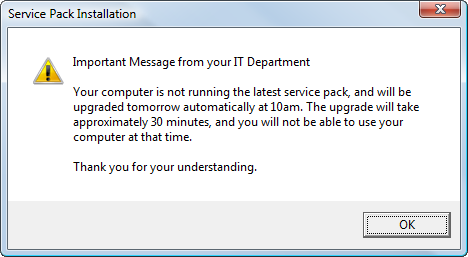
In order to display a dynamic message, we can get the last character and evaluate it. So let’s display a warning message if a user is running Vista with a service pack smaller than SP 2:
IF INSTR(@ProductType, "Vista") > 0
IF RIGHT(@CSD, 1) < 2
MESSAGEBOX("Important Message from your IT Department" + @CRLF + @CRLF + "Your computer is not running the latest service pack, and will be upgraded tomorrow automatically at 10am. The upgrade will take approximately 30 minutes, and you will not be able to use your computer at that time." + @CRLF + @CRLF + "Thank you for your understanding.", "Service Pack Installation", 48)
ENDIF
ENDIF
The INSTR() function checks whether a string appears inside another string, and the LEFT() function retrieves the specified number of characters from the beginning of a string.
 4. Map a network share depending on the IP address
Let’s imagine that we have a network share with lots of really large files (e.g. corporate training videos and more) and that we only want to map this share if a user is in the headquarter, opposed to a satellite location which has a slow access speed.
IF LEFT(@IPADDRESS0, 11) = " 10. 10.  0"
USE Z: "\\FILESERVER\TrainingVideos"
ENDIF
Now the network share is only mapped if the user is in the 10.10.0.0/24 subnet. You can also use the EnumIPInfo() if you need to get more information from the network adapter.
5. Display a warning if a password is old
Most networks require users to change their passwords on a regular basis, but wouldn’t it be nice if we could give our users a one-time warning before they are faced with the inevitable prompt that requires them to change their password?
$PasswordWarningThreshold = 170

IF @PWAge = $PasswordWarningThreshold
MESSAGEBOX("Your password is " + $PasswordWarningThreshold + " days old and will have to be changed in 10 days. Please think of a really good password in the meantime.", "Password Expiration", 64)
ENDIF
In this example I also introduced variables, which are specified with the dollar sign. These are simplified examples, and there is a lot more you can do. For example, using the registry functions, you can save user responses and previous alerts in the registry, and later read them again.
So, forget multiple logon scripts or batch scripts using “NET USE” commands. With KiXtart, you can have one central login script that can adjust dynamically to the user, location, operating system or even the computer itself.
- Create a batch file (e.g. login.cmd) with the following line:
%0\..\WKix32.exe %0\..\login.kix
- Create the actual login script for KiXtart, e.g. “login.kix”
- Assign the login script login.cmd to all user accounts that require them
That’s it. You don’t have to install anything on the client computers, and you now have a single login script for your entire network.
Until next time,
Ingmar.