Wish Sandwich – 5 (free) tools we wish Windows had

“Have you ever heard of a wish sandwich? A wish sandwich is the kind of a sandwich where you have two slices of bread and you, hee hee hee, wish you had some meat…”

These are part of the lyrics from the “Rubber Biscuit” song by “The Chips“, covered by the Blues Brothers in 1978. At the time, UNIX was almost 10 years old, the first version of BSD had been released, and Microsoft had their office in Albuquerque with Bill Gates being 23 years old.

It would take almost another 20 years before Windows NT 4 would be released. But back to the future now.

Well, after working with Windows for about 15 years now, I also wish that the base set of utilities that ship as part of Windows would have been updated and improved. It might seem odd, but one of the first things I do when I install a new release of Windows, is to open notepad, the calculator and paint – to see if they have improved.

Somewhat surprisingly, Windows 7 brings a lot of improvements to the core utilities that ship with Windows. Microsoft not only spiced up Paint and Wordpad by giving them the “Ribbon”, but also improved the calculator in ways never imagined before. Yeah!
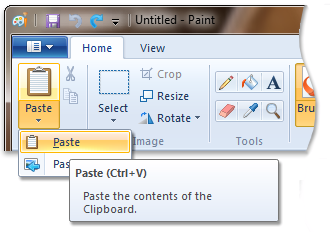
blog_wish_paint_ribbon.pngBut these improvements do not satisfy a long-time Windows user! Having worked with Linux, OS X and Windows since the 3.0 days, I have my own list of apps that I use to substitute or extend some of the archaic tools that ship with Windows.

And here they are:

1. Notepad
What we know today as “Notepad”, was first seen in Windows NT 4.0. When Windows 2000 came out, notepad hadn’t changed. Well, fair enough – it had only been 4 years after all. A short while later Windows XP was released with a bang, but notepad was still the same. Windows 2003 showed that an upgrade to notepad obviously had low priority, and the release of Vista confirmed to me that notepad was clearly no longer under development. The recent release of Windows 7 crushed my hopes of Microsoft ever releasing an updated version of Notepad. Sigh.

So, why was Notepad left behind? Well, I have a few theories:

a)    The developer who originally developed Notepad has left the company, and nobody at Microsoft understands the existing code enough to make modifications.
b)    Companies developing third-party editors formed a powerful, mafia-like lobby, threatening Microsoft (presumably kidnappings) to never ever release an update to notepad, to ensure that third-party editors will continue to sell well.
c)    Microsoft deems Notepad complete, and cannot imagine how this robust application could be improved.
d)    Windows applications do not use text files, since all configuration is stored in the registry or databases. Even though unneeded, Notepad is provided as a courtesy and might be excluded from future version (like, telnet.exe!).
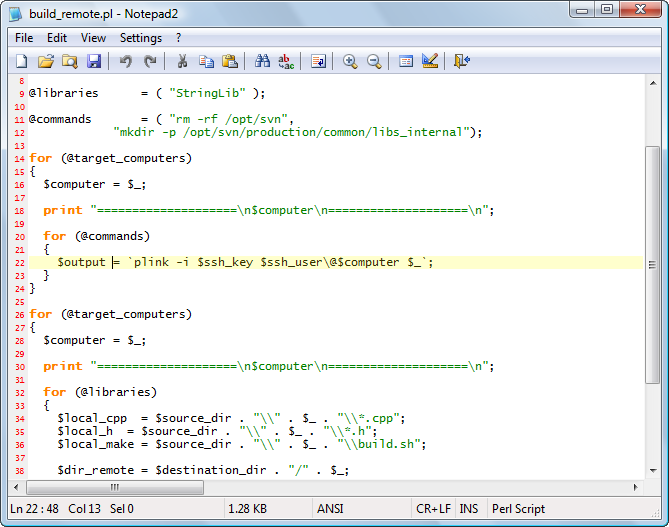
blog_wish_notepad2.pngWhatever the reason (I may never find out), fact is that Notepad hasn’t been updated in 13 years, and since Windows 8 won’t be out until 2012, probably won’t change in 16 years. That’s a lot of years for a software program.

Line Numbers?
Basic syntax highlighting?
Anyone?

So what could replace Notepad? Why, Notepad2 of course! To be fair, there are more powerful editors out there than Notepad2, but it’s free, light-weight and fast. Florian’s Notepad2 supports line numbers, syntax highlighting, line highlighting, encodings, Unix/Windows line endings, transparency and much more. An extended version from Kai Liu is also available here, most notably including code folding abilities. Tabs are not supported in either version, unfortunately.

My other favorite editor is Ultraedit, as it includes pretty much any feature you could ever want from an editor. A nice feature, for sysadmins in particular, is the ability to switch environments. The “System Administrator” view for example, allows you to show SSH/telnet/FTP windows along with the editor windows.

2. Command Prompt
Yeah, this hasn’t changed much since the early days either, though the introduction of the PowerShell deserves some credit. Using Linux regularly though, I miss some of the features like tabs, transparency and so forth.
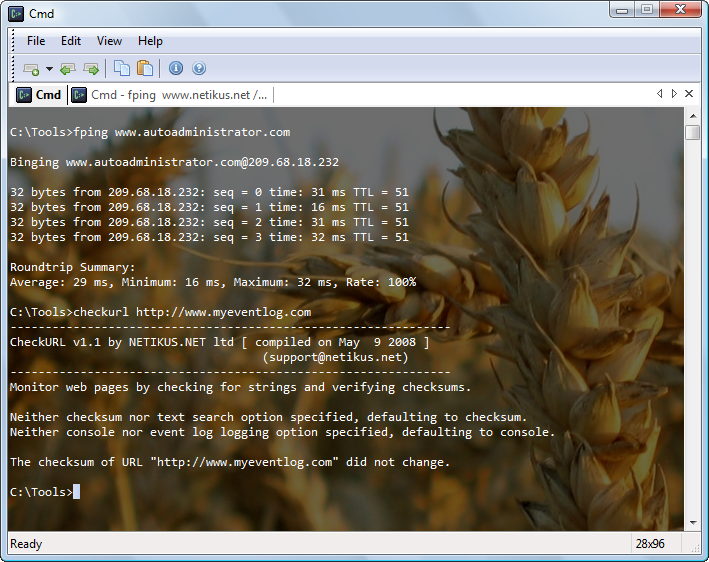
blog_wish_console2.pngThe good news is, there is an excellent substitution out there called Console. The latest beta of version 2 features transparency, multiple tabs, appearance options and is free. It’s so free, that they even give you the source code if you want it! It works on all the machines I use (mostly Vista, soon to be Win7) and I’m very happy with it overall – though it is a beta still and you might run into a glitch every now and then. I sit around in the command line a lot, and having multiple tabs open is nice.

One option I really like is the ability to show the currently executing command as the tab title, which is useful because you can see when a long-running process finishes (see screenshot above where fping is running in the 2nd tab).

When downloading, get the latest beta and simply extract all files from the

Console2\bin\release

folder to a directory of your choice.

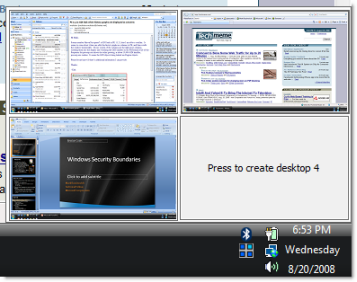
3. Desktops / Spaces
Linux, and Unix, had multiple desktops since the industrial revolution. Well, at least it seems that way. I’m not sure why this hasn’t been added to Windows yet, given that:

•    Every major Operating System OTHER than Windows includes it
•    Microsoft provides a tool (part of Sysinternals) that offers this functionality

Yes, in the age of affordable large monitors, multiple desktops aren’t really that necessary anymore. But, many of us still work on laptops and having multiple virtual desktops can help group different work into different workspaces.

I recommend Sysinternals’ Desktops, but there are more tools out there that do the same thing – though they are not all free.
blog_wish_desktops.png4. Launchy
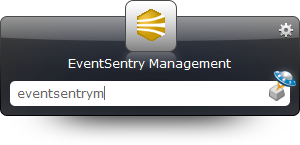
It indexes all of your applications in the start menu, and you can simply launch them by typing their name – or part of their name. No
longer do you have to wade through dozens and dozens of menu items just to find a shortcut. Simply launch Launchy with ALT+SPACE and type a couple of letters. Voila!
blog_wish_launchy_eventsentry.png5. PuTTY
If you work with Windows and UNIX/Linux machines, then it’s pretty much impossible that you haven’t heard of PuTTY. It’s a free SSH client that no only provides SSH/Telnet functionality, but also comes with other SSH-related utilities like PSCP, PSFTP and PLINK (see previous post on this).

I’d love it if Windows would ship with a command-line SSH client, just like all UNIX and Linux distributions do.

Of course there is more, but these are the tools “desktop” that we really use on a daily basis.

If your computers are in an Active Directory domain and you want to roll out some of these tools with your computers by default, then I recommend reading our previous post: Your favorite tools and utilities always available everywhere.

What do you want for nothing?

Rubber Biscuit?

Firefox .NET Framework Assistant Paranoia

There has been a lot of concern and uproar recently about the .NET Framework Assistant Firefox Add-On (plug-in), that Microsoft silently installs with the Microsoft .NET Framework 3.5 Service Pack 1 (which was pushed in early 2009 with Windows Update). As such, if you are using Firefox, then there this is a very high probability that you have this Firefox Add-On installed, maybe even without knowing it.

To quote Microsoft: “In the .NET Framework 3.5 SP1, the .NET Framework Assistant enables
Firefox to use the ClickOnce technology that is included in the .NET
Framework.”

There are dozens of blogs that complain about the security implications, how the Add-On cannot be uninstalled and eventually post instructions on how to remove the Add-On from your computer, essentially implying that the AddOn harbors major security risks. Contrary to most Firefox Add-Ons, this one can’t be uninstalled through the browser since it was installed at the “computer level”. As such, you have to remove files from the file system and modify the Firefox configuration to disable it.

I’d have to admit that I haven’t heard much about the ClickOnce technology before this sneaky little AddOn was set free, and the buzz words one reads in all the blogs, newspapers etc. certainly have the potential to make one uneasy and follow the surgical removal procedure without much hesitation:

  • Microsoft installs .NET AddOn without user approval!
  • AddOn can’t be uninstalled
  • AddOn silently runs .NET applications without user knowledge!
  • ActiveX security hell is back!

So is the AddOn a security risk and do you have scramble to rip it out? Not in my opinion, and I will explain why.

aa_FireFox_NetFrameworkAssistant_addon_1.jpgIn this post I will clear up some misconceptions about the ClickOnce technology, but also show you how to remove the AddOn from any number of computers with a few clicks – using our new AutoAdministrator 2.0 – just in case you do want to rip it out :-).

What most people don’t know, is that the ClickOnce “technology” is already present in Internet Explorer, and is not even close to what was/is possible with ActiveX applets.

ClickOnce applications run in a sandbox, similar to Java, and – by default – do not have any permission outside the sandbox. As such, a web site can’t just install a trojan horse or spam client on your computer – at least not using ClickOnce. The users permission is asked before elevated permissions are assigned to the application, and software that’s being installed can be signed – just like Windows applications are. Please see the Microsoft article below for more information on ClickOnce deployment and security:

ClickOnce Deployment and Security

So the AddOn is really just a gateway into something that is already on your system in the first place – .NET.  Java does the same thing, and the AddOn Microsoft provides is likely much leaner than the Java plugins – and doesn’t register a new plugin with every new Java update that is released.

Don’t get me wrong – Microsoft could have handled this much better, and the inability to uninstall the AddOn really doesn’t help their case.

Oh, and by the way, to see a sample ClickOnce application then you can click here. It’s hosted by the author of the https://www.softwarepunk.com/ffclickonce/ FFClickOnce Firefox Add-on, a predecessor of the .NET Framework Assistant if you will.

However, Microsoft has recently provided information on their site that outlines the required steps to remove the Add-In from Firefox, and has also released an update that will allow you to uninstall it on a per-user basis. Keep in mind that even with this update, every user would have to uninstall the Add-On manually:

Update to .NET Framework 3.5 SP1 for the .NET Framework Assistant 1.0 for Firefox

Having said all that, you might still want or have to remove the AddOn from multiple computers if you need to remove the ability for your users to run ClickOnce applications from Firefox. The good news is that you can remove all files as well as all registry entries that are associated with this Add-On from any number of computers within a matter of minutes — using AutoAdministrator.

AutoAdministrator integrates with ActiveDirectory, and lets you query/modify files, services, registry entries and more on any number of computers with the click of a few buttons. Read on to find out more.

Microsoft states that you need to perform three steps to remove the Add-On (official removal instructions – KB963707):

1. Delete the registry key HKEY_LOCAL_MACHINE\SOFTWARE\Mozilla\Firefox\Extensions\{20a82645-c095-46ed-80e3-08825760534b}

2. In the Firefox preferences (about:config), right-click the general.useragent.extra.microsoftdotnet property and select “reset”.

3. Delete the folder %SYSTEMDRIVE%\Windows\Microsoft.NET\Framework\v3.5\Windows Presentation Foundation\DotNetAssistantExtension\DotNetAssistantExtension.

We can accomplish (1) and (3) with AutoAdministrator, which does remove the Add-On. It doesn’t reset the setting inside Firefox (2), but that should be merely a formality without the actual plug in. Our tests have shown that the plug in is gone after deleting the registry key and the directory on the file system.

There are two prerequisites for this to work: Your remote machines need to have the remote registry service running (you can temporary toggle that too with AutoAdministrator if it’s not running!) and the ADMIN$ share needs to exist.

As with all things you can do with AutoAdministrator, you should be very careful. We cannot take any responsibilities if you end up corrupting your Firefox installations, or worse, the Windows OS.

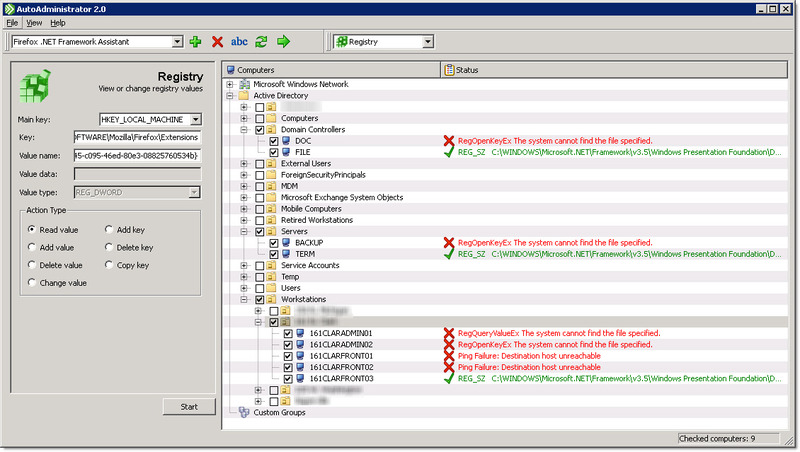
So, fire up AutoAdministrator and select the computers you want to uninstall the pesky Add-On from in the right pane. Then, select “Registry” from the toolbar and paste the key from step one in there and select “Delete key”.

aa_FireFox_NetFrameworkAssistant_Registry.jpgThe screen shot above shows the result list, using the “Read Value” option. To actually delete the key, you would need to select “Delete key”. Machines that are turned off are displayed as “Ping Failure: …”, and machines that don’t have the Add-On installed show a Windows API error message.

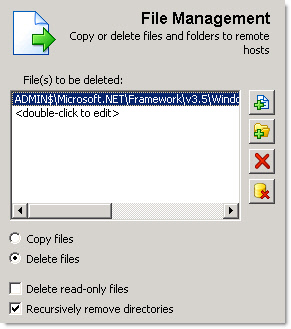
When you are doing ripping the registry settings out, you can delete the folder as well. This time, select “File Management” from the toolbar, and paste the directory in there. Note that the remote path should start with ADMIN$, as shown in the screen shot below:

aa_FireFox_NetFrameworkAssistant_Folder.jpgYou can also save these s
ettings as a preset, so that you can retrieve these settings at any point in the future with the click of a button.

I hope this information helps you make an informed decision as to how to proceed with the AddOn if it’s already installed in your network. You can

  1. Leave it
  2. Give your users instructions on how to disable it
  3. Roll-out the Microsoft patch to give your users the ability to uninstall it ( arguably identical to (2) )
  4. Remove it from all systems with AutoAdministrator or scripts

I think if this exercise reveals anything, then it’s that Firefox’s AddOn framework leaves some room for improvement. For example, why did Firefox not inform me that this AddOn had been installed? Skype also silently installs an AddOn, though that can be removed easily.

And if you’re really serious about browser security, then you might want to check out the Flashblock AddOn. It disables all flash animations by default, leaving placeholders that you can click to load any flash animation. This improves page load times, can help suppress annoying flash-based ads and of course helps security. I haven’t tested it on many sites yet, but it can quickly get annoying if you’re accessing a lot of web sites that contain reporting widgets that are flash-based.

So long,
Ingmar.

Auditing Changes to Microsoft SQL Server Database Tables

Database servers store massive amounts of data, often including sensitive information. It is not uncommon for there to be databases holding millions of rows of data, where a small subset of rows are considered critical or sensitive. This could be anything from a Social Security number to an EventSentry entry of a security event. Being notified when existing data in your database changes is crucial for log data, and can be accomplished by using triggers with Microsoft SQL Server.

For those of you not familiar with triggers, a database trigger executes code in response to events on a table or database. Triggers are essentially hooks into a table, and they usually execute SQL statements as a response to another SQL statement.

Since we love the windows event log, we’ll take advantage of SQL Server’s ability for triggers to log an event to the event log when a row in a table is modified. This allows us to not only log that activity, but also get notified immediately when suspicious or important activity occurs in the EventSentry database.

In EventSentry, we have a table named ESEventlogMain that stores Windows event information. This table constantly gets new data inserted into it, and it often gets purged as well to manage the size of the database. However, there is no reason this data should ever be modified. If it is, then we know that something is amiss and we want to trigger an event in the event log. It is also useful to know what account made that change.

The first step is to create the message in SQL. You can use this SQL statement to create it:

sp_addmessage 80000, 10, ‘Data Integrity Alert: %s’, @with_log = TRUE

The first argument is a unique SQL server message ID that should be 50001 or higher, you can delete it again using sp_dropmessage. The number 10 is the severity level, but you can read more about the different options for sp_addmessage here.

Now we create the trigger that will use this message:


CREATE TRIGGER Trigger_ESEventlogMain_Modified ON
ESEventlogMain
FOR UPDATE
AS

IF UPDATE(eventmessage) OR UPDATE(eventid) OR UPDATE(eventtime) OR UPDATE(eventcomputer)
BEGIN

     DECLARE @Msg VARCHAR(8000)
     DECLARE @EventNumber INT
     DECLARE @EventID INT
     DECLARE @Computer VARCHAR(255)
     DECLARE @EventMessageOld VARCHAR(8000)
     DECLARE @EventMessageNew VARCHAR(8000)

     SET @EventNumber = (SELECT eventnumber from deleted)
     SET @EventID = (SELECT eventid from deleted)
     SET @Computer = (SELECT A.eventcomputer from ESEventlogComputer as A, deleted as B WHERE A.id = B.eventcomputer)
     SET @EventMessageOld = (SELECT eventmessage from deleted)
     SET @EventMessageNew = (SELECT eventmessage from inserted)

     SET @Msg = ‘ESEventlogMain modified by ‘ + CONVERT(VARCHAR(20), USER_NAME(USER_ID())) + ‘ at ‘ + CONVERT(VARCHAR(20), GETDATE()) + ‘. Computer: ‘ + @Computer + ‘, Event ID: ‘ + CONVERT(VARCHAR(8), @EventID) + ‘, Event Number: ‘ + CONVERT(VARCHAR(16), @EventNumber) + ‘, EventMessage (old) =’ + @EventMessageOld + ‘, EventMessage (new) = ‘ + @EventMessageNew

     RAISERROR( 80000, 10, 1, @Msg)
END

This creates a trigger which will generate an event when the eventmessage column in the ESEventlogMain table is modified. You can remove the “IF UPDATE(eventmessage) …” clause (as well as the BEGIN & END statements) if you want to be notified of any changes to that table, this might however create some noise since acknowledging events will also perform an UPDATE on this table.

FYI: “deleted” and “inserted” are keywords that refer to either the old
record that was updated (=deleted) or the new data (=inserted).

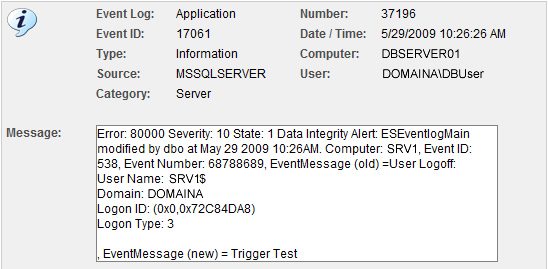
dbtriggers_event.jpgAs you can see from the screen shot above, the message text from a logoff event was renamed to “Trigger Test”. So now that the event is in the event log, we can set up a filter in EventSentry to alert us:

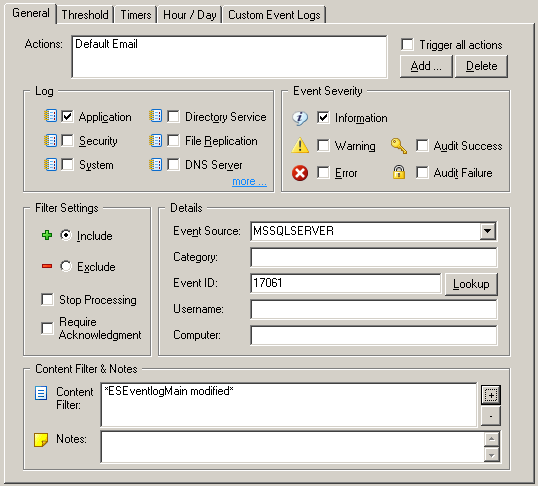
trigger_filter.pngEvents generated from triggers always have the event id 17061, so it’s a good idea to restrict the filter further using the “Content Filter” field. From now on, when the ESEventlogMain table is modified, we will get an entry in the event log as well as an email.
Just remember that any database administrator can delete or modify triggers, so it’s crucial that you keep dba access to your database as restricted as possible.

Please see the Table Relationships topic in the EventSentry help file for more information on the database tables used by EventSentry.

Best,
Tames, Ingmar + Ryan.

Read more

Running Linux applications on Windows – over the network with Xming

I always find it interesting to
see clothes and accessories that were in fashion 30 years ago, make it back
into the mainstream. It seems like the computer industry also goes in cycles
every now and then.

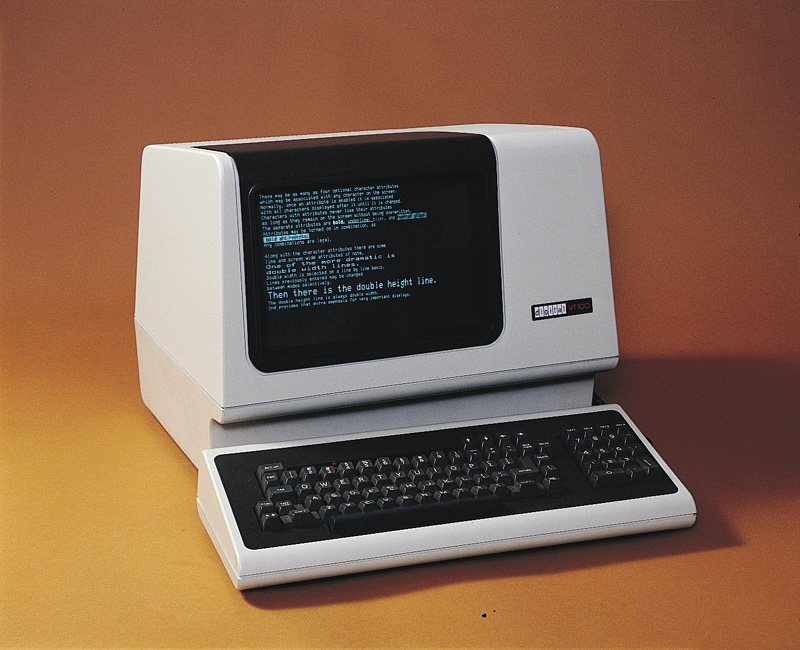
Back in the early days of
computing – before the dawn of the glorious PC era – there were few powerful
servers that were accessed by dumb terminals. The emergence of the IBM PC
changed all that and eventually led to the rich clients that most of us have
under our desks today. The traditional PC desktop however causes quite a bit of
management overhead – especially in large organizations – which appears to be
leading to the re-emergence of “dumb” terminals that access a powerful – well –
terminal server. Only this time we have a fancy user interface.

xming_terminal_vt100.jpg
xming_xdm.jpg

If you have worked with Unix-like
operating systems before, then you’re probably familiar with the X windows
system
, though most people don’t know about the X Windows system’s (from now on referenced to as X11) network
transparency
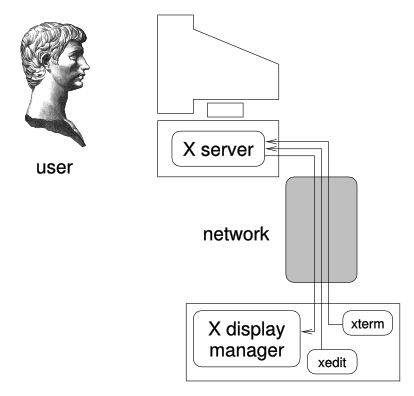
. In essence, you can run
an application on host A, but
actually display and interact with the application on host B. Furthermore, you can actually utilize X11 to remotely log into a
host running X11 without the need to install additional software on that host –
provided that X11 is configured to support this. The screenshot below shows this a bit better.So what does this mean in
practice? You can install a resource-hungry application on a dedicated and
powerful Linux host, yet run and execute the application on a different, less
powerful Linux machine – even if that machine is not even running Linux. What’s
even better is that those remote applications appear just like any other
application on your desktop. Citrix calls this “application publishing”, and
Microsoft introduced “TS RemoteApp” with the Windows Server 2008 platform. Yet,
X Windows has offered this functionality for decades – from the very start.

But what makes this feature
really interesting for us windows admins (or Unix admins that, for whatever reason, have to use a Windows workstation), is the fact that you can install an X
server on your windows machine and run Linux applications “natively” on it
– thanks to the open-source project Xming).

Xming, according to the project
web site, is the “leading free unlimited
X Window Server for Microsoft WindowsÂŽ (XP/2003/Vista)
”. There have been
security concerns in the past when using X11 remotely, but by tunneling X11
traffic through SSH, Xming is actually quite secure and doesn’t usually require
any configuration changes on the host running X11 (phew!).

When tasked with either cross-platform
system administration or development, the discovery of Xming opens up a door of
possibilities. For example, you can edit remote configuration files
conveniently by running your favorite Linux editor on your Windows desktop, or
run a terminal like gnome-terminal. Why run a terminal through X-Windows when
you can just use an SSH app like PuTTY? For one thing, you can launch GUI
applications directly from the terminal (e.g. ‘gedit &’) on your Windows
desktop. Of course, you can also play a Linux game on Windows that way.

If you’re a cross-platform
developer, then you can execute a Linux/Unix development studio (e.g. eclipse)
on your Windows box – and it appears just like any other Windows app. And since
it’s technically running on the Linux box, compiling on your Windows app really
compiles it on the remote platform (e.g. Linux). The responsiveness of applications is also quite good, at least over an Ethernet connection.

This technique also works for
multiple end users, so it’s also possible to connect to one Linux machine from
multiple Windows machines and run Linux apps. The Linux machine really acts
like a terminal server in this case.

Let’s look at how to run a Linux
app on a Windows desktop. I used Ubuntu 8.10 and installed Xming on a Vista laptop. So, download & install the following Xming
packages from https://sourceforge.net/project/showfiles.php?group_id=156984:

  • Xming
  • Xming-fonts

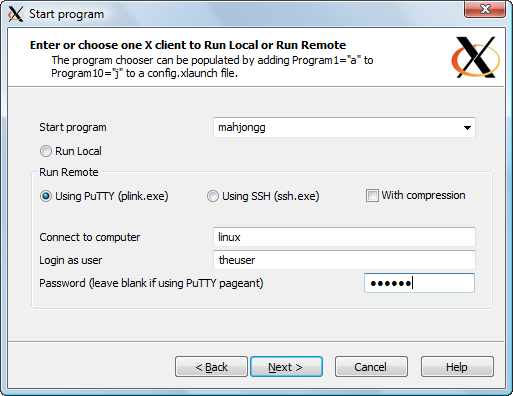
Then, start XLaunch from the
start menu and select the following options:
 

  1. Multiple Windows
  2. Start a program
  3. Start program: Enter the application you want to
    launch there. E.g. gnome-terminal,
    gedit, mahjongg
    or whichever remote application you want to run
    “locally”
  4. Run remote – using PuTTY: Select this option and
    specify the computer name, user name and password.
  5. On the next step, simply leave the default options in
    place, click “Next” and “Finish”.

xming_xlaunch.png

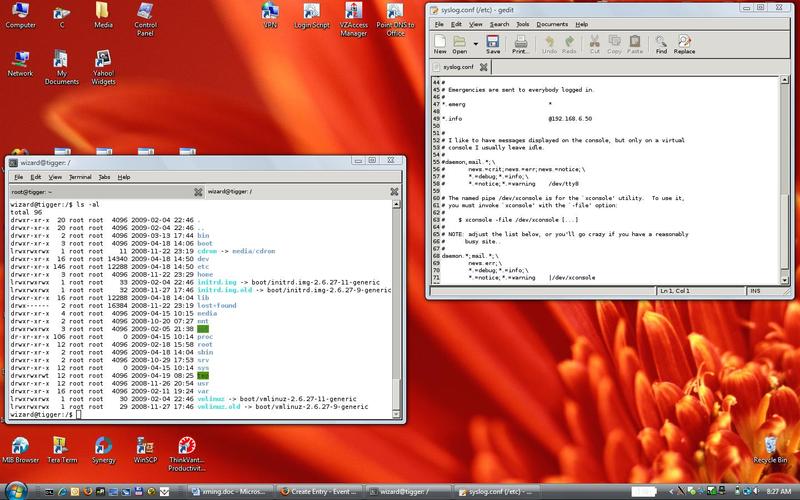
You should now have a little X
icon on the tray, and the application you selected should be running on your
desktop. The screenshot below shows gnome-terminal and gnome-text-editor
running on my Vista machine.

xming_desktop.jpg

Xming uses plink.exe (see also: https://www.eventsentry.com/blog/2007/12/plink-or-issuing-ssh-command-o.html)
internally to execute apps, whose display is then redirected to our local Windows
client, on the remote host. You can also save these settings in a configuration file and create a shortcut on your desktop or start menu.

If the XDMCP protocol is enabled
on the Linux/Unix host (disabled by default on most distributions for security
reasons), then you can log into the remote host for a complete remote session
similar to VNC or other remote desktop applications. But again, keep in mind
that XDMCP transmits data in clear text over the wire (using both TCP and UDP),
and as such is an insecure protocol that should only be enabled in trusted
networks. To log in remotely with Xming, select the following options after
starting XLaunch:

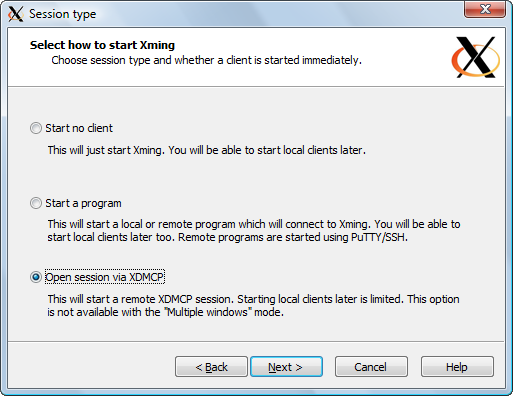
  • One Window
  • Open session via XDMCP
  • Specify the remote host name

xming_xlaunch_xdmcp.pngOne last tip regarding Xming: If, at some point down the line, you are unable to launch remote apps on your desktop, even though the X tray icon from Xming is present, then try to reset the X server by right-clicking the tray icon and choosing “Exit”.

Well, I hope this gives you a
starting point and helps ease the pain when maintaining heterogeneous network
environments.

Until next time,

Ingmar.